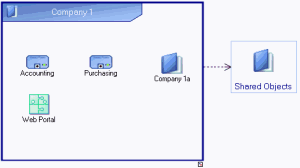
Library Diagram
The library diagram enables representation of the list of objects contained in a library, and the creation of links to other libraries.

Object types presented in a library diagram are limited to "main types". These "main types" are accessible in the diagram objects insert toolbar.
You can use this diagram to quickly access the main objects on which you are working.
In the example above, "Company 1" contains "Accounts" and "Purchasing" business processes and the "Web Portal" application.
A library can:
• Own another library.
In the example above, "Company 1" has a subsidiary "Company 1a", for which a library has been created.
• Access another library.
In the example above, "Company 1" accesses the "Shared Objects" library.
Defining library references from its diagram
To reference a library by another library:
1. In the Home navigation window, open the diagram of the library that interests you.
2. In the navigation window, select the library you wish to reference.
3. Drag the library into the edit window and place it outside the frame of the described library.
4. Click the reel in the objects toolbar

and create a link from the frame of the described library to the referenced library
The link appears as a dotted line in the diagram. This indicates that the library is accessed by the described library.
Libraries accessed by a library appear in the Characteristics tab of its properties dialog box.