Collecting a Set of Objects Using a Query and Adding a Computed Property
Description of the Report DataSet Definition
This use case collects a set of applications of a specific portfolio of a given vendor asking the user to choose the portfolio and the vendor:
The result displays for each application:
• properties regarding the application (cost, type, rank, used technology) and the technology (end life date, vendor) and the vendor (number of provided technologies)
• a computed property: the number of Business Processes of the application
This Report DataSet Definition is based on the root MetaClass: Application (1).
To define how to collect the input data, you need to create a Query (2), which computes the input data using two Property Parameters ("Vendor" and "Portfolio"):
• Query name
"APM - Get Applications of a Portfolio using Technologies of a given Vendor"
• Query code
Select [Org-Unit] Into @OrgUnits Where [Name] = &"Vendor"
Select [Software Technology] Into @Technologies Where [Vendor] in @OrgUnits
Select [Application] Where ([Supporting Software technology]:[Software Technology] in @Technologies)
And [Initiative].[Owner Portfolio] = &"Portfolio" Or [Deployed Object]:[Software Installation].[Initiative].[Owner Portfolio] = &"Portfolio"
Where the Property Parameters:
• "Vendor" defines from who the end user wants to collect the applications
• "Portfolio" defines from which portfolio the end user wants to collect the applications
Both "Vendor" and "Portfolio" Property parameters (3) are automatically created once the query is selected.
 Note that the Query Parameter Name value in the query code and in the Property Parameters ("Vendor" and "Portfolio") are exactly the same, ans that they are case sensitive.
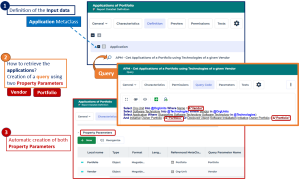
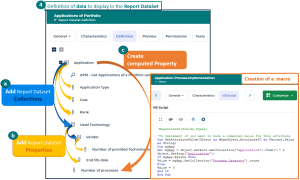
To define (4) the data you want to display in the Report DataSet, you can:
• add Report DataSet Collections (a)
• add Report DataSet properties (b),
Note that the Software Technology MetaClass is not directly connected to the Application MetaClass, but to an abstract MetaClass (Supporting Software Technology Building Block) of which Software Technology and Software Technology Stack are sub-types.So that to add the Software Technology to the Definition, you need to go through the Supporting Software Technology MetaAssociationEnd and define the Software Technology MetaAssociationEnd as target.
• create a computed property (c):
• a Report DataSet Property, which displays the number of Process Categories of each application
Report DataSet Property: "Number of processes".
• the Macro, which computes the "Number of processes"
Macro: "Application Process.Implementation".
Sub GetAttributeValue(Object as MegaObject,AttributeID as Variant,Value as String)
Dim mgApp
Set mgApp = Object.GetRoot.GetCollection("Application").Item("~" & Object.GetProp("<Field of the Report DataSet Collection "Application">"))
If mgApp.Exists Then
Value = mgApp.GetCollection("~h4n)MzlZpK00[Process Category]").count
Else
Value = 0
End If
End Sub
Creating the Report DataSet Definition
To create the Report DataSet Definition that collects applications of a specific portfolio of a given vendor:
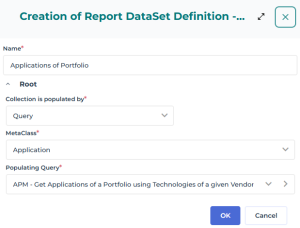
1. Create a query-based Report DataSet Definition based on the Application root MetaClass.
e.g.: Report DataSet Definition Name: Applications of Portfolio.
2. In the Populating Query field, create the query that defines how to collect the input data, with the following characteristics:
• Name: "APM - Get Applications of a Portfolio using Technologies of a given Vendor"
• Query Implementation: "Select"
• Stereotype: "Internal Query"
• Query Code:
Select [Org-Unit] Into @OrgUnits Where [Name] = &"Vendor"
Select [Software Technology] Into @Technologies Where [Vendor] in @OrgUnits
Select [Application] Where ([Used Technology] in @Technologies)
And [Initiative].[Owner Portfolio] = &"Portfolio" Or [Deployed Object]:[Software Installation].[Initiative].[Owner Portfolio] = &"Portfolio"
3. Note that both "Portfolio" and "Vendor" Property parameters are automatically created:
• Type: "Object"
• Format: "MegaIdentifier"
• Referenced MetaClass: Portfolio/Org-Unit MetaClass
• Query Parameter Name: "Portfolio"/"Vendor"
If needed you can rename its Local Name. Only the Query Parameter Name value must have the exact same name as in the Query Code (be careful as it is case sensitive).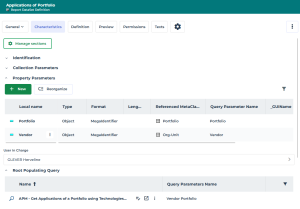
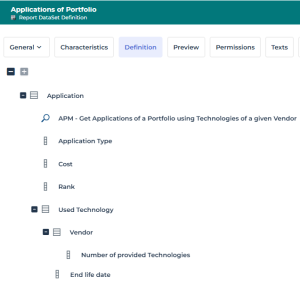
4. Define the data you want to display in the Report DataSet, from the Report DataSet properties: Definition:
You can feed the Definition in any order.Add Report DataSet Collections and Report DataSet Properties
Hover over Application, then click New  > Report DataSet Property:
• Local Name: enter "Application Type" (/"Cost"/"Rank")
• Property type: "Value" (by default)
• MetaAttribute: "Application Type" (/"Cost"/"Rank\APM")
• Click OK
Hover over Application, then click New > Report DataSet Collection:
> Report DataSet Collection:• Local Name:enter "Used Technology"
• Collection is populated by: "MetaAsociationEnd" (by default)
• Target MetaClass: "Software Technology"
• Populating MetaAssociationEnd: "Supporting Software Technology" (automatically filled in)
• Click OK
Hover over Used Technology, then click New > Report DataSet Collection:
> Report DataSet Collection:• Local Name: enter "Vendor"
• Collection is populated by "MetaAssociationEnd" (by default)
• Target MetaClass: select "Org-Unit"
• Populating MetaAssociationEnd: "Vendor".(automatically filled in)
• Click OK
Hover over Vendor, then click New > Report DataSet Property:
> Report DataSet Property:• Local name: enter "Number of provided Technologies"
• Property type: "value" (by default)
• MetaAttribute: "Number of provided Technologies"
• Click OK.
Hover over Used Technology, then click New > Report DataSet Property:
> Report DataSet Property:• In the Local name field enter "End life date".
• Keep Property type: "value".
• In the MetaAttribute field select "End life date".
• Click OK.
Add a computed Property
From the Application Report DataSet Collection, create a computed parameter "Number of processes":
Hover over Application, then click New > Report DataSet Property:
> Report DataSet Property:• Local Name: enter "Number of processes"
• Property type: "Computed".
• MetaAttribute Type: "String"
• MetaAttribute Length: 63
• in the Implementation field, select Create macro and create the "Application Process.Implementation" macro:
Sub GetAttributeValue(Object as MegaObject,AttributeID as Variant,Value as String)
Dim mgApp
Set mgApp = Object.GetRoot.GetCollection("Application").Item("~" & Object.GetProp("~7LVpD6zKezHJ[Application]"))
If mgApp.Exists Then
Value = mgApp.GetCollection("~h4n)MzlZpK00[Process Category]").count
Else
Value = 0
End If
' Value = 4
End Sub
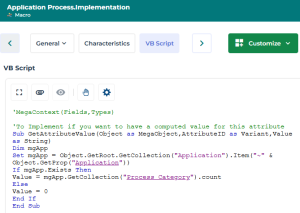
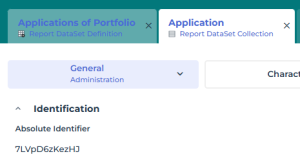
Where here "~7LVpD6zKezHJ[Application]" is the field of the "Application" Report DataSet Collection.
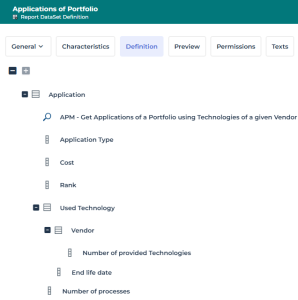
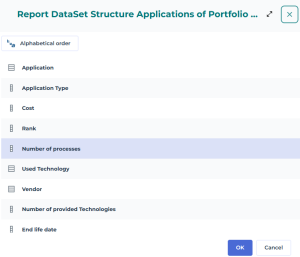
5. Reorder the Report DataSet columns.
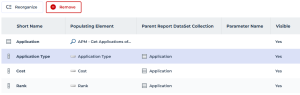
6. Hide the "Application Type" column and rename a Short Name if needed.
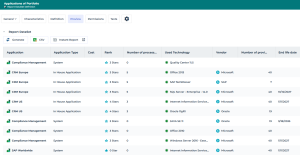
7. In the Report DataSet Definition properties, select Preview and test your Report DataSet Definition.
For example, use "CRM Transformation" Portfolio and "Microsoft" Vendor.
You can:
• export the Report DataSet in CSV format
• generate Instant Reports from the Report DataSet
The entire Report DataSet data is taken into account, even data hidden with the list filtering tool (in the Preview page).