How to Apply a Conditional Style to a Treemap
To apply a conditional style to a treemap, you need to apply a conditional style to the Report Tree Property associated with the Tree Report Column of a Report Tree View.
To apply a conditional style to a treemap:
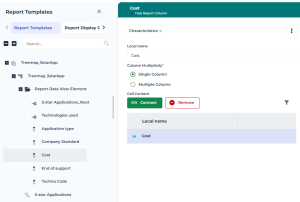
1. Access the Tree Report Column  properties.
2. Access the Report Tree Property associated with the Tree Report Column concerned:
• Display the Tree Report Column Characteristics page.
• In the Cell Content list, select the Report Tree Property.
• Display its Properties.
3. Display its Style page.
 For details regarding TreeSet properties, see Adding TreeSet Properties to a TreeSet Collection.
4. Click Add  .
.5. Enter a Name to your conditional style.
6. In the Style Parameters list, select the style you want to add on condition.
 Only the style parameters applying to the Report Tree View renderer are listed.You can select several styles.
7. Click Next.
8. In the Style Parameters list, select the style parameter and configure it in the right part.
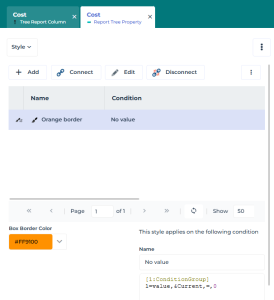
Example: for a Box Color, in Value keep "Fixed" and select a color.
9. Click OK.
10. In the Style page, select your conditional style row.
11. In This style applies on the following condition:
• in the Name field enter a name describing the condition
• in the pane enter the code for your condition.
For code syntax, see Report Style Condition Properties.Example:
To apply a conditional style to "Cost" property with no value.
[1:ConditionGroup]
1=value,&Current,=,0
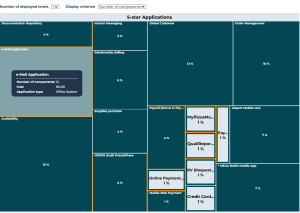
In the treemap report, borders of boxes matching the condition are colored.
For example, the applications with no cost value.