Using the Grid
Showing the grid
By default, at diagram creation, the grid is hidden.
 The grid can be hidden, but active.
To show the grid:
1. Right-click in the diagram and select Grid.
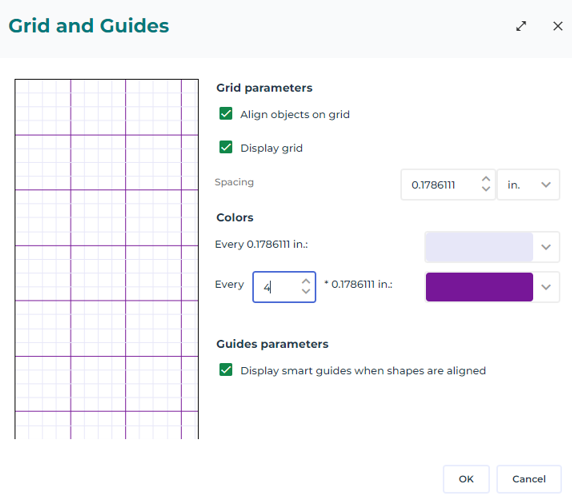
The Grid and Guides window opens.
2. Select Display grid.
3. Click OK.
The grid is displayed in the diagram.
 The grid display does not mean that it is active. To activate the grid, Align objects on grid must be selected.
Activating the grid
When the grid is activated, the new elements are automatically aligned with the grid lines. The element size is a multiple of grid spacing. When you move elements, they move by increments equal to grid spacing.
By default, smart guides are activated and take precedence over the grid.To align already created elements with the grid, see Aligning elements on grid.
To activate the grid:
1. Right-click in the diagram and select Grid.
The Grid and Guides window opens.
2. Select Align objects on grid.
The grid is active.
The grid can be activated even if it is not displayed.When you hold down the <Alt> key while manipulating objects, the grid is temporarily deactivated if previously activated, and vice-versa.Configuring the grid display
You can configure:
• spacing of grid lines.
• color of grid lines.
To configure the grid display:
1. Right-click in the diagram and select Grid.
The Grid and Guides window opens.
2. In:
• the Grid parameters section, in the Spacing field, select the line spacing value and unit (mm, in., pt.).
• the Colors section, you can define the line color and a grid pattern not as sharp.
E.g.: display a darker line every 4 lines.