Using Heatmap Questionnaires
A Heatmap questionnaire template enables you to present the questionnaires sent in the form of a heatmap (and not in the form of questions in a list or table).
Use case
This type of questionnaire is used in Hopex GRC to assess risks (direct multiple assessment and questionnaire campaigns).
When you open the questionnaire, two heatmaps are consecutively displayed:
• 1st heatmap: inherent risk calculation (Impact * Likelihood)
 The heatmap displays by default the results of the last assessment.
• 2nd heatmap: residual risk calculation (Inherent Risk * Control Level)
The second heatmap is linked to the first one: one row only is active for each risk. This row depends on the location of the risk on the first heatmap.Prerequisites to heatmaps
Questionnaires in the form of heatmaps can be used in different contexts provided that:
• the questionnaire contains 3 questions, e.g.:
• Impact
• Likelihood
• Control Level
• 2 values are computed, e.g.:
• Inherent risk
This value is computed from the first 2 questions (Impact and Likelihood)• Residual risk
This value is computed from the Inherent risk (calculated value) and the 3rd question (Control Level).Examples of assessment via Interactive Heatmap
Let's take the example of risk assessment within the framework of Hopex GRC.
To assess risks in their context via the interactive heatmap:
1. Open the questionnaire from the e-mail you have received.
If you are already logged in, in the navigation bar click Assessment > My Activities > Assessments > Questionnaires to be Answered.2. Open the questionnaire to complete.
3. In the 1st heatmap, position the risks so as to specify:
• the Impact (in columns)
• the Likelihood (in rows)
The cell color corresponds to the value of the calculated Inherent Risk. The inherent risk is displayed in the corresponding column.
You may select several risks at the same time to position them in the same cell. This speeds up the assessment process.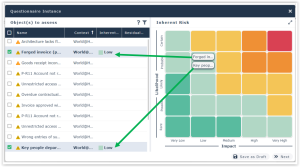
4. Make sure you have positioned all the risks and click Next.
To make sure you have positioned all the risks, you may use the Inherent Risk column and sort the risks. The risks for which the Inherent Risk column is not filled remain to be assessed.5. In the 2nd heatmap, position the risks so as to specify the Control Level (in columns).
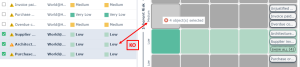
You are allowed to position the risks only in the row which corresponds to the previously calculated inherent risk.
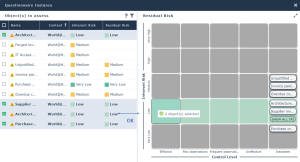
Hopex does not allow to position the risks in a non-authorized row.
6. Click Submit to submit answers.
Filtering risks
You may apply a filter to display only part of the assessed risks in the list.
To display in the list the objects contained in a cell only:
 Hover the mouse over a cell and click when you see Apply filter.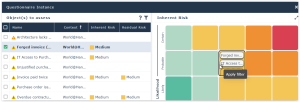
Only the risks contained in the cell appear in the list (4 risks in our example):
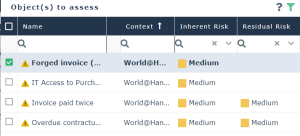 In the heatmap the other risks turn semi-transparent.
To delete the applied filter:
In the list click Hide filters.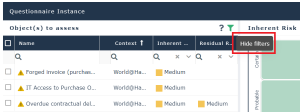
All the risks of the heatmap appear in the list.
To filter the objects of the list by name:
1. Click the Apply filters icon and enter part of the name of the risk.
2. Risks corresponding to the search are displayed in the list.
Those that do not correspond to the search turn semi-transparent in the heatmap.
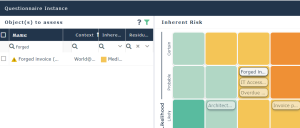
Using heatmap columns to assess risks
You may choose to assess risks via the columns of the list (and not via the cells of the heatmap).
To assess risks via the list:
1. Display the Impact and Likelihood columns.
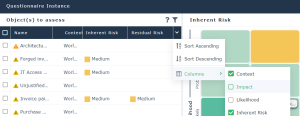 These two columns are not displayed by default.
2. Fill in the column values for each risk in its context.
The inherent risk is calculated.
Displaying the heatmap in full screen
To display the heatmap in full screen:
Click Maximize at the top right hand corner.
Sorting risks
To sort risks in a list:
Click the Name column.The order in the list impacts the order of the risks in cells.