Mapping links
You can map links between ServiceNow and Hopex.
There are two types of links.
• Simple links (i.e. direct link between two objects) are easy to map in the Map a Field creation page.
 Note that simple links in ServiceNow have the "Reference" type.
 • Complex links (i.e. links using intermediate objects)
 You must map both the source object and the target object of a link. If not, the link will not be created.
In Hopex some complex links that are computed from intermediate objects have a shortcut. In this case, it is recommended to use this shortcut, which appears as a simple link from the source object. For more information, see Accessing links details in Platform - Common Features.
• In the case of complex links with shortcuts, intermediate objects are hidden by default and no further configuration is needed.
The option which enables to hide (default) or display the intermediate objects in Hopex is to be found here:Main Menu > Settings > Options > Repository > Metamodel > Display the Contexutalization Objects of Links.
• If complex links don't have shortcuts or if the "Display the Contextualization of Links" is activated, you may however need to define complex links:
Defining a complex link in Hopex
By default, complex links are not available in the list of fields to map (if there is no shortcut or if the "Display the Contextualization of Links" option is activated).
Therefore, you need to define a complex link in order to be able to map it.
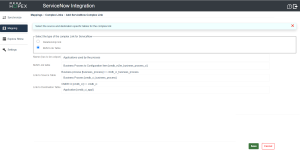
To define a complex link in Hopex:
1. From the Mapping menu, select Define complex links.
2. Click the Add new HX button.
3. Select a Source MetaClass and a Destination MetaClass.
4. Click Search Links.
Complex links between the two MetaClasses appear in a table.
 You can filter the results via the column headers
  .
.5. Click  to select the complex link of your choice.
to select the complex link of your choice.6. Enter a name for this complex link.
7. (Optional) Enter the standard links to hide.
The links from the MetaClasses to the intermediate object will be hidden in the list of Hopex fields. 8. Click Save.
Defining a complex link in ServiceNow
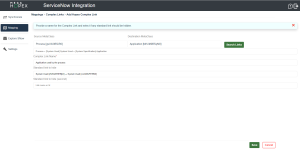
To define a complex link in ServiceNow:
1. From the Mapping menu, select Define complex links.
2. Click the Add new SN button.
3. Select the type of complex link between:
• Relationship link
• M2M link Table (Many-to-many link)
4. Enter the relevant fields and click Save.