Accessing Application Properties
To access the properties pages of an application:
1. In the navigation bar, click Applications.
2. In the edit area, click the application to display its properties.
Certain property pages are hidden by default. To display them, click the Show/Hide button, then select the desired page.
Application Overview
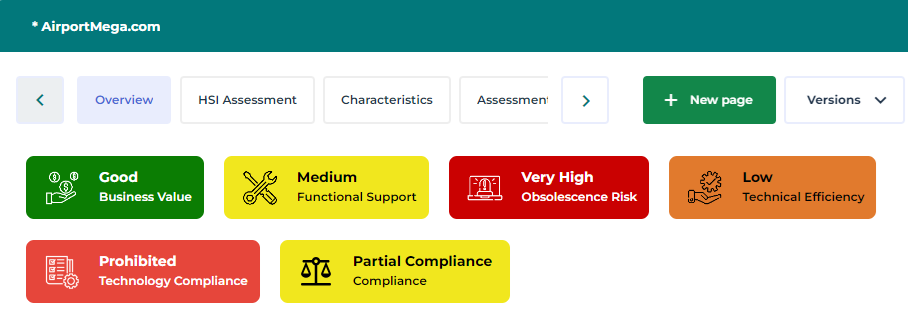
Colored indicators highlight for the application:
• its Business Value: involvement level of the application in enterprise production.
• its Functional support: support level by the application to the enterprise processes.
• its Technology Efficiency: assessment of evolution possibilities of the application from the techniques that support it.
 For more details on these indicators see Evaluating Application Criticality.
• its Technology Compliance: attribute calculated on the basis of the “Company Standard” defined on all the technologies used by the application.
• its Obsolescence Risk corresponds to the highest risk of the technologies linked to it. If an application is linked to three technologies with “low”, “high” and “very high” risks, the application risk takes on the maximum value, i.e. “very high”.
See the obsolescence risk in the Overview of an application.• Compliance: corresponds to the value of the last assessment visible in the Governance page.
The Governance page is not displayed by default. You can display it via the Display/Hide button. After displaying this page, you also need to display the Policies to comply with section using the Manage Sections to view the assessments of application compliance to architecture principles.